
The MyQ app has revolutionized the way homeowners operate their garage doors with just a few taps on their smartphones. This smart home tool integrates seamlessly with compatible garage door openers and Wi-Fi connections, enabling you to open and close your garage door remotely from virtually anywhere.

Whether you’re on vacation, at work, or simply in another part of your home, managing your garage door has never been easier or more secure. Learning how to open garage door with MyQ app is straightforward, even for beginners. Once you’ve set up the app, you’ll enjoy not only convenience but also peace of mind, knowing you can control and monitor your garage door at all times.
By following this comprehensive guide, you’ll quickly master the steps to use the MyQ app and take full advantage of its innovative features.
Why Use the MyQ App?
The MyQ app offers unmatched convenience, security, and peace of mind when it comes to managing your garage door. By allowing you to control and monitor your garage door remotely, it eliminates the need to double-check whether you’ve left it open after rushing out of the house. Additionally, the app provides alerts and notifications in real time, keeping you informed of any activity. For families or multi-car households, the ability to share access with others adds another layer of efficiency and flexibility. Most importantly, its user-friendly interface ensures that anyone, regardless of tech expertise, can benefit from the MyQ app’s advanced features.
9 Step-by-Step Guide: How to Open Garage Door with MyQ App
Step 1: Download the MyQ App
The first step in using the MyQ app is downloading it to your smartphone. Available for both iOS and Android devices, the app can be found in their respective app stores by searching for “MyQ.” Ensure you download the official app created by Chamberlain Group for optimal functionality and security.
Once downloaded, install the app on your smartphone and review the permissions it requires to operate. These permissions typically include access to your device’s Wi-Fi and location data, which are essential for app functionality. After installation, open the app to create an account. You’ll need to provide an email address and a password to set up your profile. This account will become the control hub for all your MyQ-compatible devices.
Remember to verify your email address, as the app may send a confirmation link. Proceeding with an active email ensures uninterrupted access to critical features. With the app in place, you’re ready to move to the next step.
Step 2: Set Up Your MyQ Device
After creating your MyQ account, the next step is setting up your MyQ-enabled garage door opener or add-on device. If you already own a MyQ-compatible garage door opener, it may have an integrated Wi-Fi module that seamlessly connects to the app. For other models, you may need a MyQ Smart Garage Hub, which works as an add-on to make existing openers compatible.
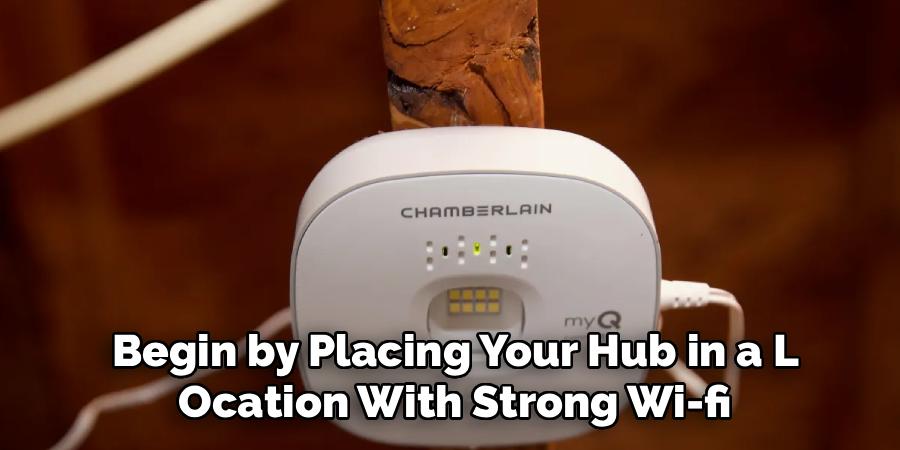
Begin by placing your hub in a location with strong Wi-Fi reception, preferably near the garage door opener. Plug it into a power source and activate the device by pressing the “learn” button. The MyQ app will guide you through the syncing process, ensuring the garage door opener pairs correctly with the hub.
Follow the on-screen prompts to link your device to your home’s Wi-Fi. Double-check your router’s signal strength before proceeding, as a weak connection may hinder performance. Once the device is successfully linked, test its connection by opening and closing the garage door using the app.
Step 3: Connect the App to Your Wi-Fi
For the MyQ app to function reliably, it needs a stable Wi-Fi connection. Navigate to your app’s settings and locate the option to configure your Wi-Fi details. Enter the credentials of your home network, including the SSID and password.
Ensure your Wi-Fi router operates on a 2.4 GHz band, as some MyQ devices are not compatible with 5 GHz frequencies. During setup, keep the devices close to the router to minimize interference. Successful connection results in a notification from the app and a steady light indicator on the MyQ hub itself.
This stable connection allows you to control your garage door remotely, even when you’re away from home. You can now access critical features like door status monitoring and activity alerts.
Step 4: Test the Garage Door Controls
Once your MyQ device is connected, testing its functionality is crucial. Open the MyQ app and locate the garage door control icon, often marked clearly within the main interface. Tapping the icon should send a signal to your garage door opener, prompting it to move.
During this test, observe the door’s response time and ensure there’s no significant delay. If you notice any issues, verify your Wi-Fi connection and power source. Adjustments to the placements of the hub or router might be needed to improve performance.
Testing the controls not only ensures proper device configuration but also familiarizes you with the app’s user interface. Take note of additional features, such as closing the door with a timer or setting up notifications for when the door is accessed.
Step 5: Configure Alerts and Permissions
The MyQ app offers customizable alerts that notify you of your garage door’s status. To enable these, go to the app’s notification settings and select your preferences. You can receive alerts whenever the door is opened, stays open for a specified period, or closes.
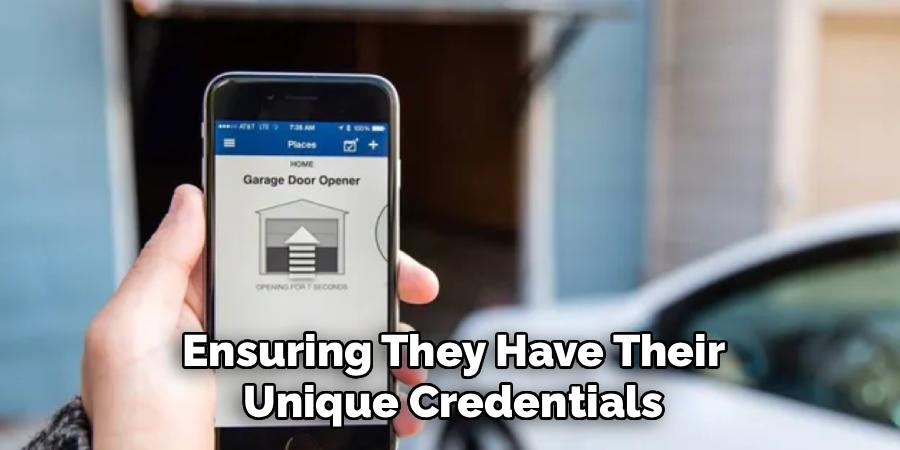
For multi-user households, you can grant app access to family members. Add their accounts under the permissions tab, ensuring they have their unique credentials. With this feature, everyone in your household can operate the door without compromising security. Review and update user permissions periodically to maintain control over who can access the system.
Step 6: Explore Voice Control Options
MyQ pairs effortlessly with popular voice assistant platforms like Amazon Alexa or Google Assistant, allowing you to operate your garage door through voice commands. To use this feature, link your MyQ app to your preferred smart home assistant.
Ensure the MyQ application and voice assistant are both updated to their latest versions. Once linked, you can issue simple voice commands like “Close the garage door” or “Open the garage door.” Voice control adds another layer of convenience, especially when your hands are full or you’re on the go.
Step 7: Manage Remote Access
One of the app’s standout features is remote access to your garage door. Whether you’re letting in guests or confirming the door is closed after leaving the house, the MyQ app lets you do it all remotely.
When using remote access, double-check to ensure your app notifications are active. These alerts not only confirm door status changes but also help with overall security monitoring. Remote access is particularly useful for deliveries, allowing couriers to drop off packages securely inside your garage.
Step 8: Keep Firmware Updated
Regular updates to the MyQ app and its connected devices ensure peak performance and security. Enable automatic updates for the app on your smartphone to access the latest enhancements.
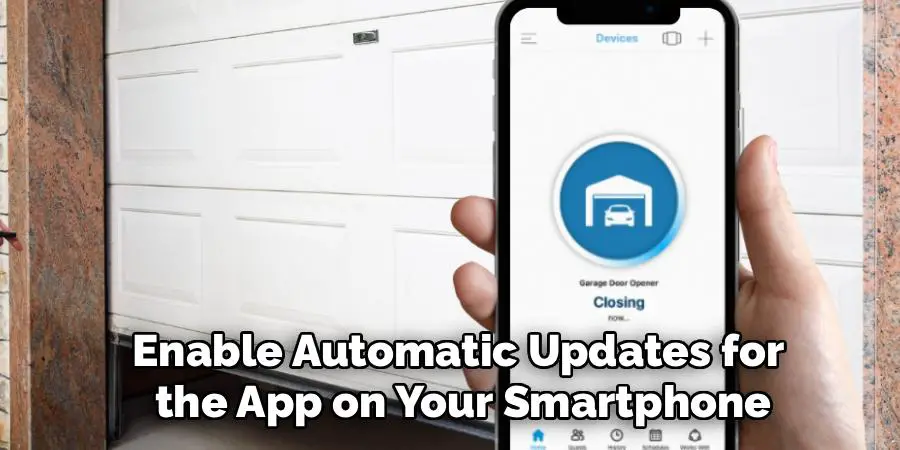
Occasionally, the MyQ hub or opener firmware may also require updating. The app typically notifies users when these updates are available. Following through with updates prevents compatibility issues and resolves bugs that may affect functionality.
Step 9: Troubleshoot Issues
Sometimes, the MyQ app might encounter connectivity or operational glitches. If this happens, reset the hub or garage door opener to refresh the connection. Refer to the app’s troubleshooting section for step-by-step guides on resolving specific problems.
Common issues often stem from weak Wi-Fi signals or outdated software, so addressing these first can save time. For persistent challenges, consider contacting MyQ customer support for professional assistance.
Frequently Asked Questions
1. Can I use the MyQ app without Wi-Fi?
No, the MyQ app relies on a stable Wi-Fi connection to operate. Without Wi-Fi, the app cannot communicate with the garage door opener or hub. Ensure a strong Wi-Fi network for uninterrupted functionality.
2. Can MyQ control multiple garage doors?
Yes, as long as each garage door opener is MyQ-compatible, you can control multiple doors through the same account. The app interface allows users to manage multiple devices with ease.
3. Is MyQ compatible with older garage door openers?
Older garage door openers can still work with MyQ if you use a MyQ Smart Garage Hub. This device bridges compatibility gaps for most traditional openers.
4. Are MyQ app features secure?
Yes, the MyQ app uses encryption to protect data and secure access. However, it’s recommended to create strong, unique passwords and update them regularly for enhanced security.
5. Can I schedule garage door operations with MyQ?
Yes, the MyQ app enables users to schedule automatic door operations. You can set specific times for opening or closing the door, enhancing convenience and security.
Conclusion
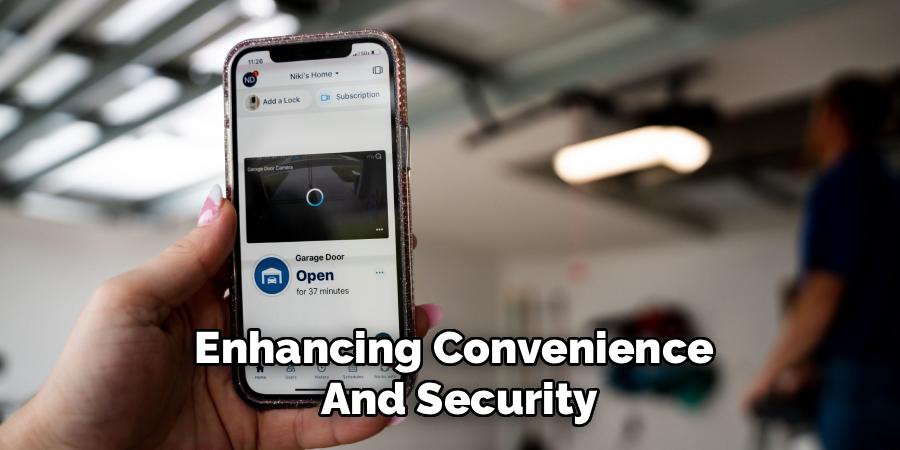
Learning how to open garage door with MyQ app is a simple and effective way to modernize your home. With just a few steps—including downloading the app, setting up the hub, and connecting your devices—you’ll enjoy seamless control over your garage door.
Additionally, the MyQ app integrates with various smart home systems, allowing you to connect it with voice assistants like Amazon Alexa, Google Assistant, or Apple HomeKit. This integration provides even greater ease of use, enabling hands-free operation and enhanced functionality within your smart home ecosystem.
By following this guide, you’ll unlock a host of features including remote access, customizable alerts, and voice commands. Use the MyQ app to add convenience and security to your home today. Your garage door will never be the same!

I am Rick. I grew up helping my dad with his handyman service. I learned a lot from him about how to fix things, and also about how to work hard and take care of business. These days, I’m still into fixing things- only now, I’m doing it for a living.
I’m always looking for new ways to help people grow and develop. That’s why I have created this blog to share all my experience and knowledge so
that I can help people who are interested in DIY repair.